How to install your eSIM
An eSIM is a digital SIM — no plastic card. After you buy, we email you a QR code and an activation code. Just follow the steps for your phone.
Tip: install on a stable Wi-Fi connection. You install each eSIM only once.
iPhone & iPad
Three quick steps. If the QR does not work, open the manual option below.
1
Step 1
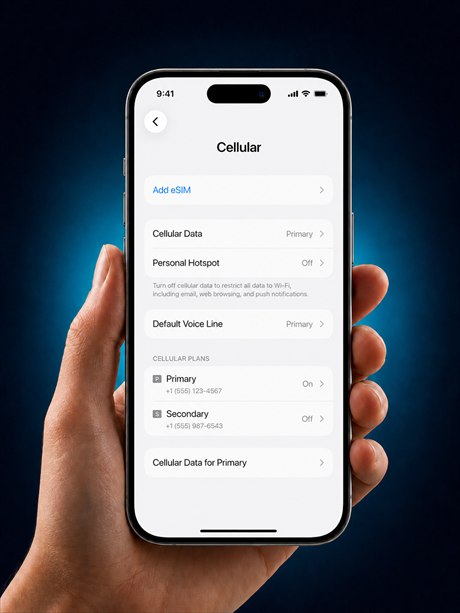
Open eSIM setup
Go to Settings → Cellular (or Mobile Data) → Add eSIM.
2
Step 2
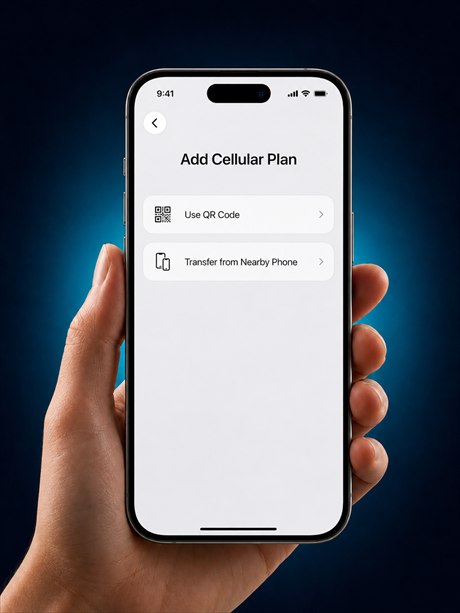
Add a cellular plan
Tap Add Cellular Plan and continue to the scanner.
3
Step 3
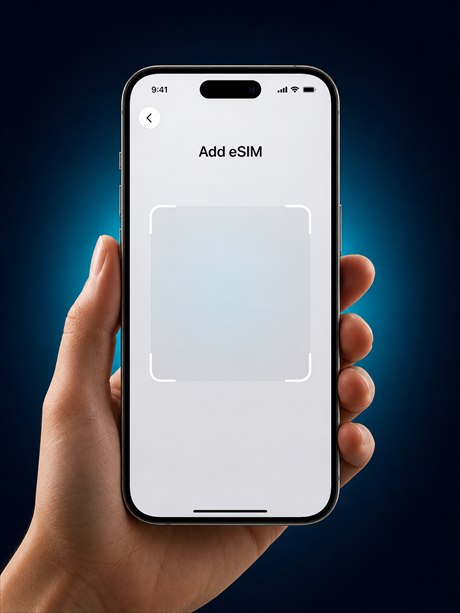
Scan the QR from your email
Scan the QR code in your Wyra email. On iPhone you can also tap the Activate on iPhone button in that email to set it up in one tap.
QR did not work? Enter it manually▼
4
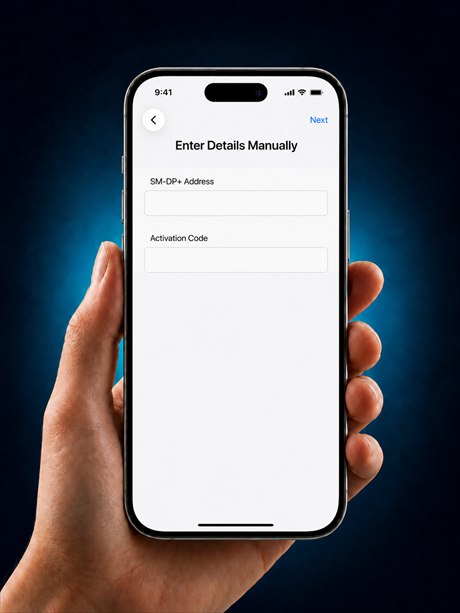
Enter the details by hand
Choose Enter Details Manually and type the SM-DP+ Address and the Activation Code from your Wyra email.
✓
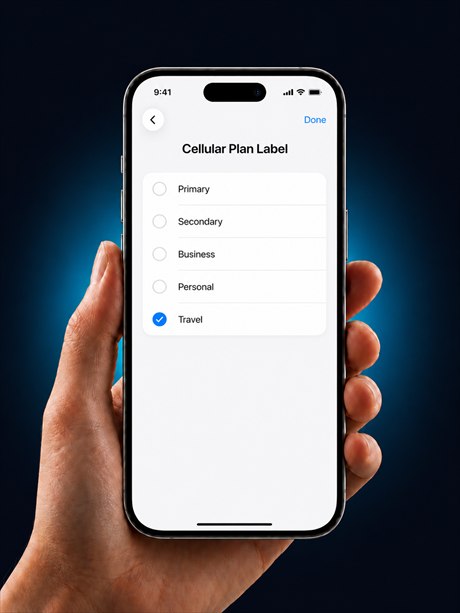
Last step
Label your line
Give the line a name so you can tell it apart — pick Travel or any label you prefer (the options vary by iPhone and region).
Android
Four quick steps. If you have a Samsung, open the Samsung note below.
1
Step 1
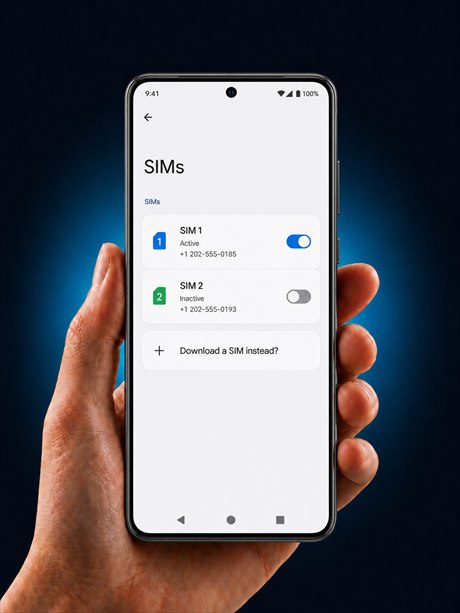
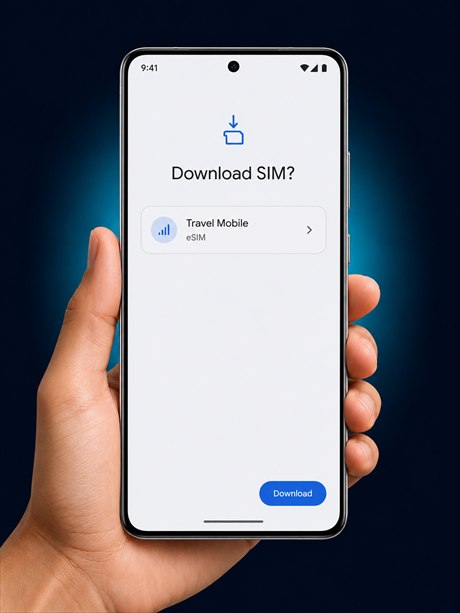
Open eSIM download
Go to Settings → Network & internet → SIMs → Download a SIM instead.
2
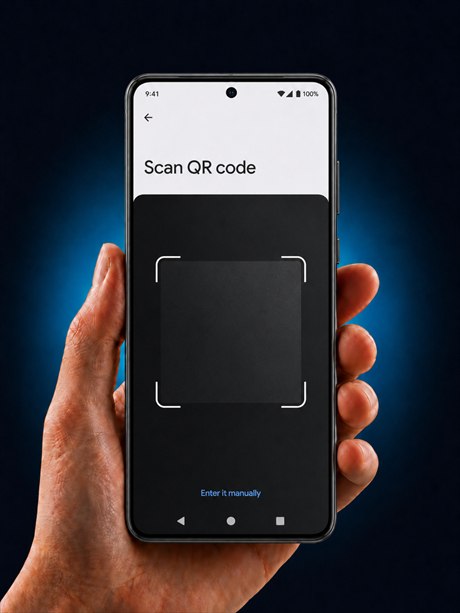
Step 2
Scan the QR from your email
Scan the QR code in your Wyra email and confirm.
3
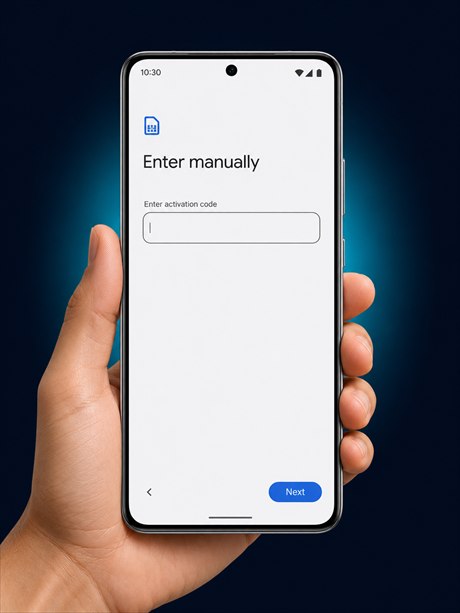
Step 3
Cannot scan? Enter it manually
Choose Enter it manually and paste the activation code — the single LPA line from your Wyra email — into the one field.
4
Step 4
Download the SIM
Tap Download and wait for your phone to add the eSIM.
Have a Samsung? The path is a little different▼
S
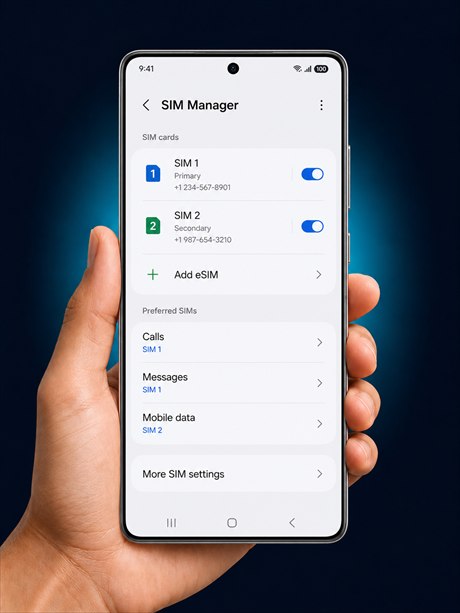
Samsung — use SIM Manager
On Samsung: Settings → Connections → SIM Manager → Add eSIM, then scan the QR or enter the code.
Installed it, but I have no internet
Turn ON Data Roaming for your Wyra line. This does not add charges — your plan already includes it. It just lets the eSIM use the local network.
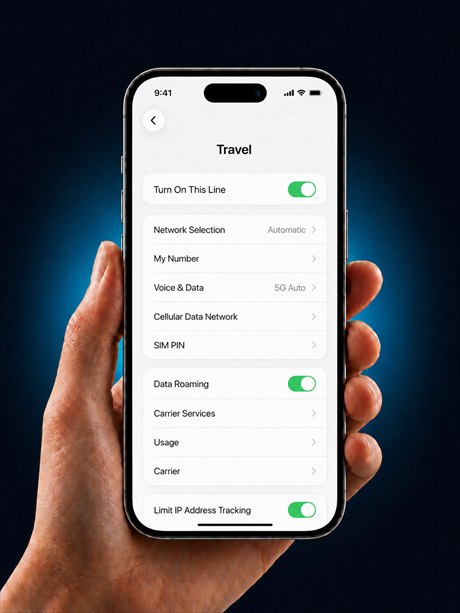 Turn this ON
Settings → your Wyra line → Data Roaming = ON
Turn ON Roaming for your Wyra line. This does not add charges — your plan already includes it. It just lets the eSIM use the local network.
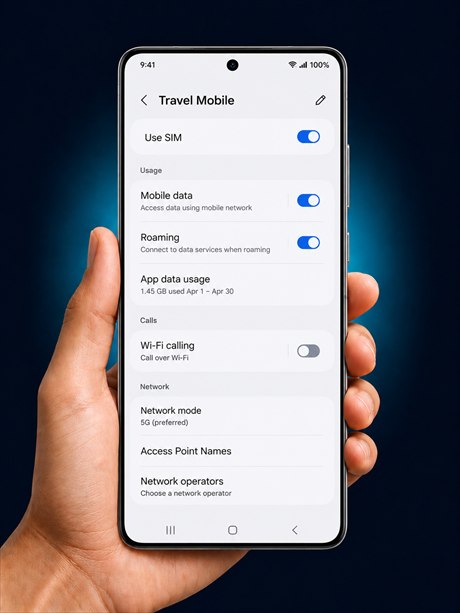 Turn this ON
Settings → SIMs → your Wyra line → Roaming = ON
Still not working?
- Restart your phone after installing.
- Make sure you had a stable Wi-Fi connection during install.
- Check that your device supports eSIM on our compatibility page.
- Each eSIM installs only once — if you already scanned it, do not scan again. If it still fails, contact us and we will help.
Wyra Technologies LLC